How to Choose the Right Interactive Flat Panel for Your Business or Education Project
A practical guide to choosing the right interactive flat panel based on screen size, touch technology, system configuration, connectivity, and application requirements.
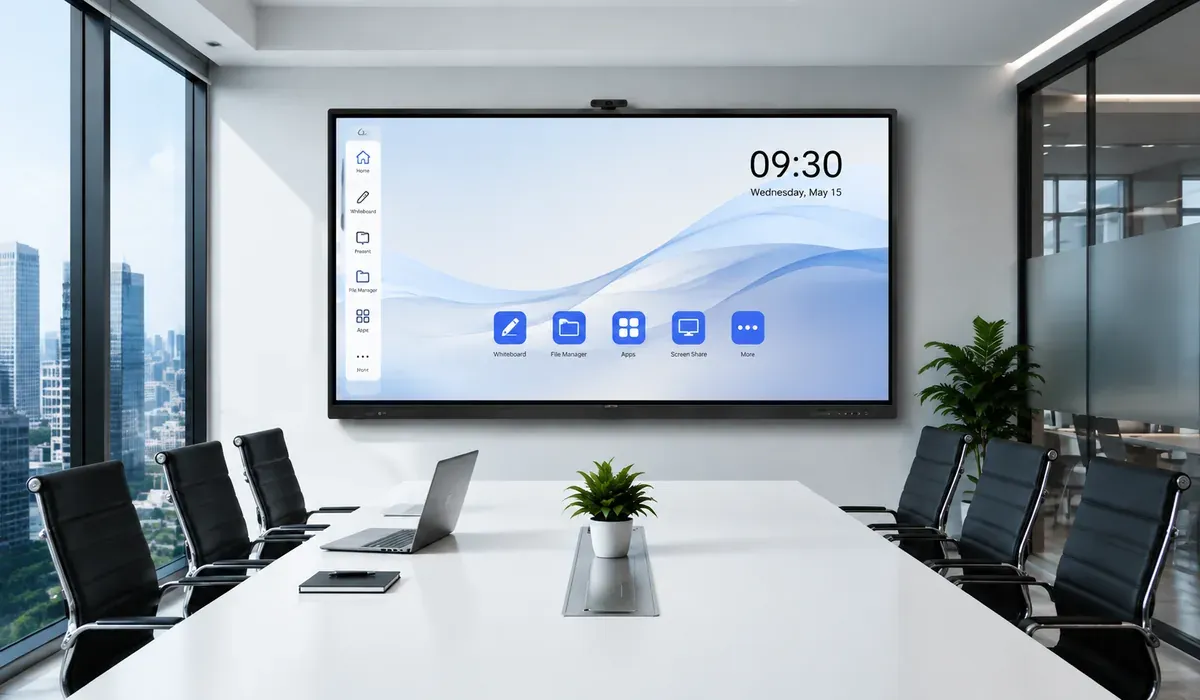
An interactive flat panel is bought once and used every day, so the choice is worth getting right. Five things decide whether a panel fits: size, touch, system, connectivity, and where it will be used.
1. Size: match the room, not the catalogue
All three RR Display panels share the same picture quality — 4K UHD (3840×2160), 350 cd/m² brightness, a 178° viewing angle and an 8 ms response — so size is a room question, not a quality question.
- 65" (RR650-B20) suits a small classroom or a meeting room for up to about 8–10 people.
- 75" (RR750YT-OD20) is the middle size, and the safest default for a standard classroom or a meeting room of roughly 10–20 people.
- 86" (RR860-B20) is for large classrooms, lecture halls and boardrooms, where the back row still needs to read small text and handwriting clearly.
The practical test is simple: from the furthest seat, can you read the smallest text you normally show? If in doubt, go one size up. Also check the wall before ordering — the units are 1485 mm, 1707 mm and 1953 mm wide, and weigh 36 kg, 50 kg and 63 kg respectively, so the wall or mobile stand must fit both the width and the weight.
2. Touch: how it will actually be written on
A panel used for teaching or whiteboarding lives or dies by its touch. Look for three things: how many touch points it supports, whether the pen lands where you expect it to, and whether the surface handles many hands at once.
RR Display panels use 20-point infrared touch, so several people can write or annotate at the same time without the panel losing track. For daily writing, also ask the supplier about the bonding between the glass and the screen — it affects how accurately the pen tip lines up with the line on screen and how much glare you see under classroom lights.
3. System: don't buy a fixed configuration off a spec sheet
The mainboard, operating system and memory of an all-in-one panel change frequently, and the right combination depends on the software you run — a classroom whiteboard app, a video-conferencing platform, or a signage player each want something different.
So we don't publish a fixed system configuration as a product specification. Tell us what the panel has to run, and we match the configuration to your project at inquiry time. What is fixed across the range is the display itself: 4K resolution, 20-point touch, and 15W×2 built-in speakers, so a meeting room does not need external speakers for normal use.
4. Connectivity: the panel has to join your room, not the other way round
Check three things before you buy: Wi-Fi, screen sharing, and ports for the devices you already own.
RR Display panels support dual-band Wi-Fi (2.4 GHz and 5 GHz) and Bluetooth 5.0, and wireless screen sharing from laptops and phones — the two features a meeting room actually uses every day. If your room runs on a wired network or a particular video-conferencing setup, mention it when you inquire and we will confirm the configuration fits.
5. Application: classroom and meeting room are not the same job
The panel is the same hardware, but the priorities differ.
- In a classroom, the panel is a writing surface first: touch accuracy, readability from the back row, and a size that fills the teaching wall matter most. Anti-glare glass helps under bright classroom lighting.
- In a meeting room, the panel is a sharing surface first: wireless screen sharing, clear sound from the built-in speakers, and a camera-ready setup for video calls matter most.
If you tell us the scenario — classroom or meeting room, room size, number of viewers — we can recommend the size and confirm the setup before you order.
Next step: browse the three panels — RR650-B20 (65"), RR750YT-OD20 (75"), RR860-B20 (86") — on our Products page, see how they are used on our Solutions page, or send an inquiry and tell us about your room.